

PALETTE INDEXING
HOW IT WORKS:
The user can set a room's color palette in the Room Editor or the Tilemap Editor by opening the palette manager. When you change a palette, all textures assigned to that palette will change color.

You can also change the number of color palettes and the size of each color palette in the palette manager:

Individual sprite data is stored in multiple textures, one for each unique color in the sprite. Pixels are either white or transparent. This sprite, for example, will create four image files when saved in the Sprite Editor:

The Sprite Editor will create one image file with the selected colors (excluding the background color), and it will create one file for each unique color in the sprite (again, excluding the background color) for a total of four files:

There are two types of sprite component: one that renders textures directly, and one that renders using palette indexing. The latter uses the split image files and blends them with colors from the palette manager:
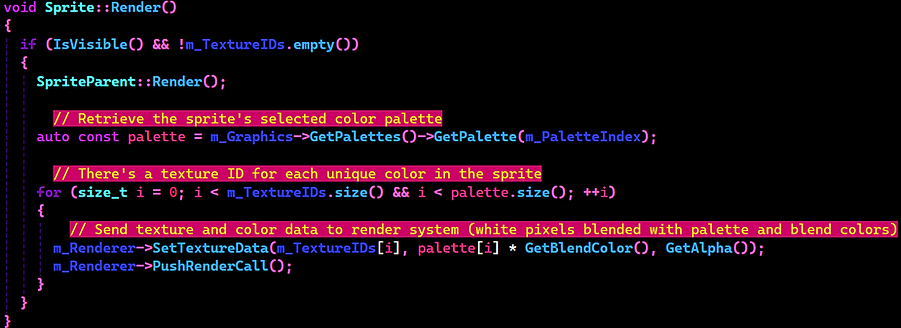
Now, changing the character's color palette requires only changing one integral value (the sprite's palette index). This character has a behavior node that quickly cycles through all the room's palettes (like the Super Star effect from the original Super Mario Bros):
